Styles from the 1001site catalog
A style is a pre-designed website template based on a well-known platform: colors, fonts, button and card shapes, and animations. The 1001site catalog contains 1,000 styles. Select a template, click "Apply," and your website will be designed in that style.
Who is this suitable for?
For anyone who wants a beautiful website without a designer. You can change the style as many times as you like.
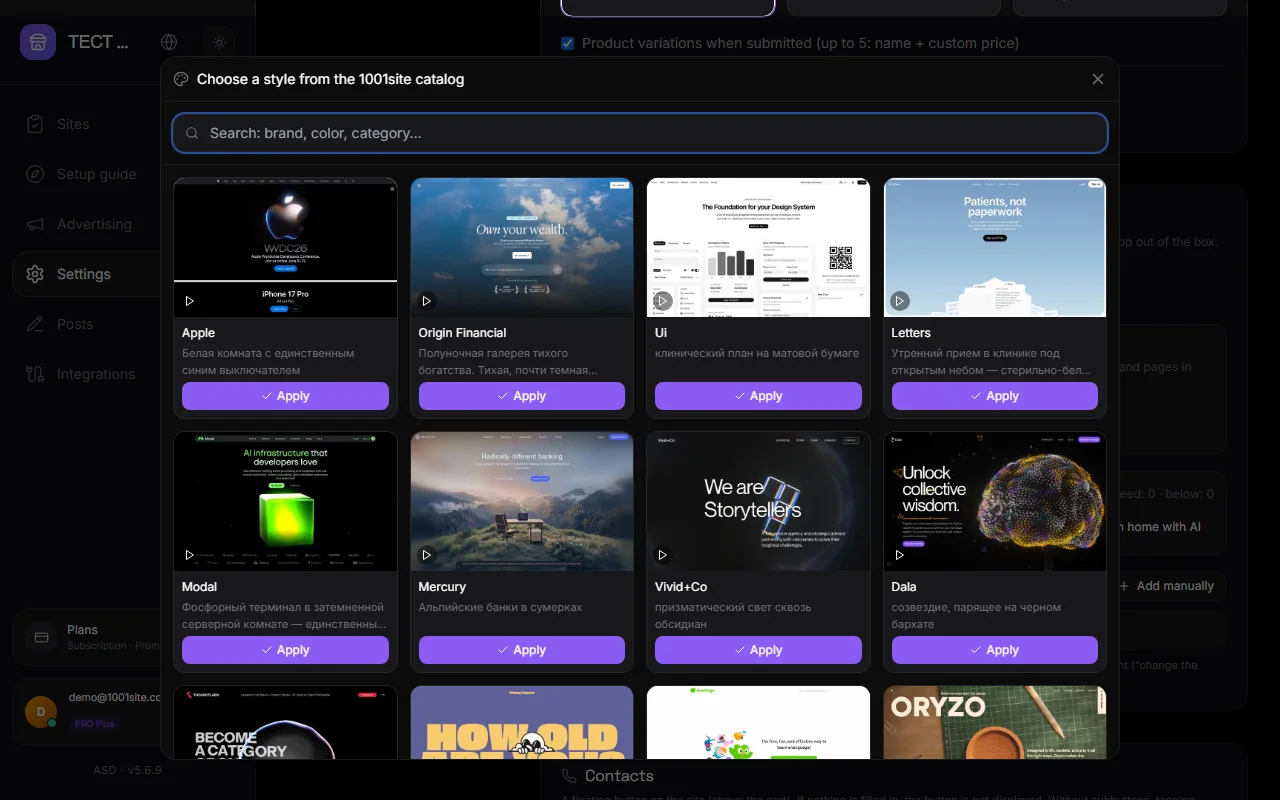
Where to choose a style#
- In your account: Settings → Home and Menu → "Site Style" → "Select Style" (or "Select Another"). Or follow step 2 of the guide.
- On the directory website 1001site.com: open the style and click "Apply to your board" at the bottom of the card. If you're already logged in, the style will be applied immediately.
- In the catalog, upon registration, select "Get it" → "All Inclusive." The style will be remembered and applied after payment.
Steps#
Step 1. Open the catalog#
In the "Site Style" section, click "Select Style." A window with cards will open. Hover over a card to see a video of the sample site.
Step 2. Find a style#
The search searches by brand name, color, font, and category. For example: "apple," "minimal," "dark," "shop."
Step 3. Click Apply#
In a few seconds, the style will be applied: colors, fonts, rounding, shadows, and animations. The name and preview of the selected style will appear in the "Site Style" block. Open the site by clicking the "See the result" link.
What changes style#
| What | How |
|---|---|
| Colors | Background, cards, text, accent. Default light or dark theme—as in the example. |
| Fonts | A font similar to the example font is selected from Google Fonts |
| Form | Rounding of buttons and cards, flat cards or with shadow, density |
| Animations | One of four sets: calm, soft, glow, dynamic |
| Home | If the "design homepage" switch is enabled, a hero block with the site name and style slogan will be added at the top |
The style doesn't affect your text, products, categories, pages, or your CSS. Your CSS edits are saved next to the style block.
Style and AI assistant#
After selecting a style, the AI assistant assembles the homepage and pages based on the design reference of that style: composition, imagery, typography, and text tone. This is the same principle as for designers: style → design system → pages.
Change or remove style#
- Change: "Choose Other" → select new → "Apply." The previous style block is replaced, not added.
- Remove: the trash can icon on the style preview. This removes the style's CSS and name. Colors and fonts remain as they are—you can adjust them in Branding or ask the assistant to "reset the design."
Style files#
Each style in the catalog has files that are understood by AI tools:
- DESIGN.md (complete and compact) — style description: colors with roles, fonts, sizes, indents, do/don't do rules.
- Tailwind v4 is a theme for Tailwind.
- CSS Variables - CSS variables.
- Design Tokens — JSON with tokens.
Files can be copied or downloaded from the style's catalog page. They're easy to give to Claude, ChatGPT, Cursor, or our assistant: "Make it in this style." See the Style Catalog.
Tariffs#
Applying a style to your website is available with paid plans. Without a plan, the style is saved and applied automatically after payment.
Questions and answers#
The style was applied, but the site doesn't look like the example. Why?#
The style carries over colors, fonts, shapes, and animations. The page structure and photos are yours. To make the homepage look like the example, ask the AI assistant: "Design the homepage in the style of the site: hero, advantages, gallery, contacts."
Can I apply a style to multiple sites?#
Yes, the style is applied to the current site. Switch sites in your dashboard and apply the style again.
I changed the color manually and then applied the style. Which wins?#
Style. Colors from the style will override the manual ones. Custom CSS from the "Code and Widgets" section remains.
Where do the examples come from?#
From an open catalog of popular website styles. Videos and posters are stored on our server.